If you use Timetable (E10), you can access its help articles here
Introduction
This article explains how to synchronise a published timetable from Timetable 2.0 to Arbor using Arbor Sync.
Note: Only published timetables can be synchronised with Arbor.
IN THIS ARTICLE
- Before you start
- Configure your Arbor connection
- Sync a published timetable
- Frequently Asked Questions
- Up next
Before you start
Before a timetable can be synchronised, the Arbor connection must be configured by the Tes Operations team.
Once the connection is in place, you can schedule a sync directly from any published timetable.
Configuring Arbor connection before syncing
To get Arbor connection set up before syncing;
- Contact Tes Support at timetablesupport@tes.com
- Provide your Arbor credentials.
- Tes Operations will set up the connection.
Once setup is complete, your school can sync a published timetable to Arbor.
Sync a published timetable
To Sync a published timetable, go to:
Published Timetable > Published Timetables. A list of published timetables will be displayed.
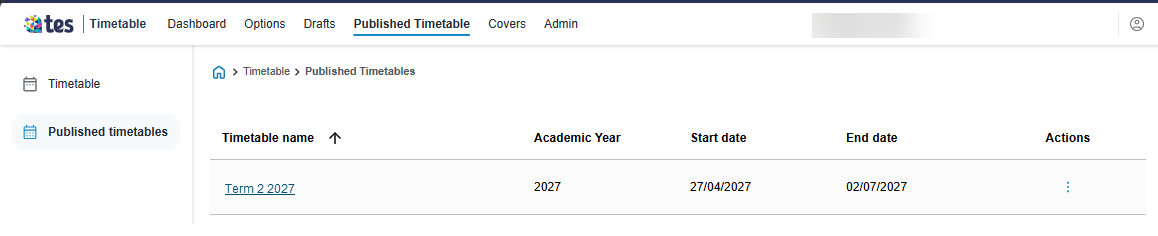
Schedule a timetable sync:
- Locate the timetable you want to synchronise.
- Under Actions, click on the 3 dots.
- Select Schedule Sync.
Confirm the sync:
When the confirmation window opens:
- Review the information displayed.
- Select Schedule Sync to continue.
Once confirmed, the timetable data is added to the synchronisation queue and sent to Arbor for processing.
To cancel the sync:
If you need to cancel the sync, select Cancel to return to the Published timetables screen without sending any data to Arbor.
Frequently Asked Questions
Why can't I see the Schedule Sync option?
Only published timetables can be synchronised. If your timetable has not been published, the sync option will not be available.
Why can't I sync to Arbor?
Your Arbor credentials may not have been configured yet. Contact Tes Support to confirm your Arbor connection has been set up.
Does Arbor support teacher cover synchronisation?
No. Teacher cover synchronisation is currently only available to Sentral users in Australia.
Up next
Share a published timetable with teachers and students
Was this article helpful?
That’s Great!
Thank you for your feedback
Sorry! We couldn't be helpful
Thank you for your feedback
Feedback sent
We appreciate your effort and will try to fix the article