If you use Timetable (E10), you can access its help articles here
Introduction
In Timetable 2.0, Staff are imported or manually uploaded from your MIS/SIS. The system considers teacher availability, any non-contact time, any particular subjects they teach and any allowances when generating a timetable.
This article explains how to review staff and set the key details needed to generate an accurate timetable.
TABLE OF CONTENTS
Staff list (imported or uploaded manually from your MIS/SIS)
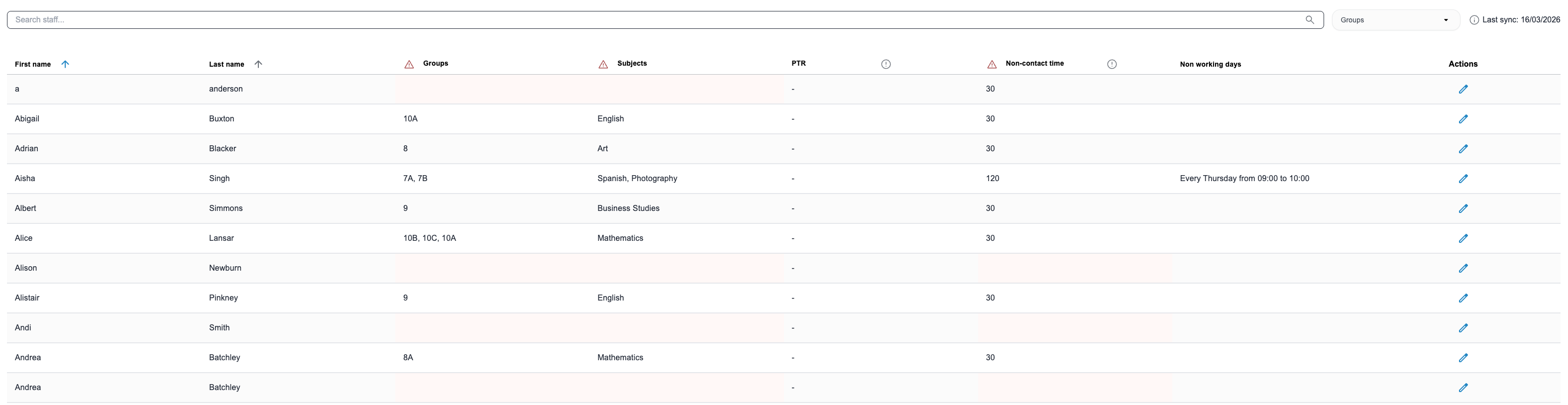
Staff are imported or manually uploaded from your MIS/SIS. Use the search box to find a staff member by name. You can also use the Groups filter to narrow the list (for example, by MIS/SIS Group or Custom Group).
What staff data is imported or uploaded from MIS/SIS?
| First name | Employee's given name (required) |
| Last name | Surname, family name of teacher (required) |
| Employee email address (required) | |
| Source ID | MIS/SIS ID or unique identifier (required) |
| Subjects | Subjects taught by this employee (optional) |
| Groups | Student cohorts and year groups taught by this employee (optional) |
| Non-working days and times | Specific days and times that the employee is not available to teach at school (optional) |
| Non-contact time | Allowance time for employee planning, preparation and assessment (PPA), release from face-to face (RFF) or duties other than teaching (DOTT) (optional) |
Set up teachers in a timetable draft
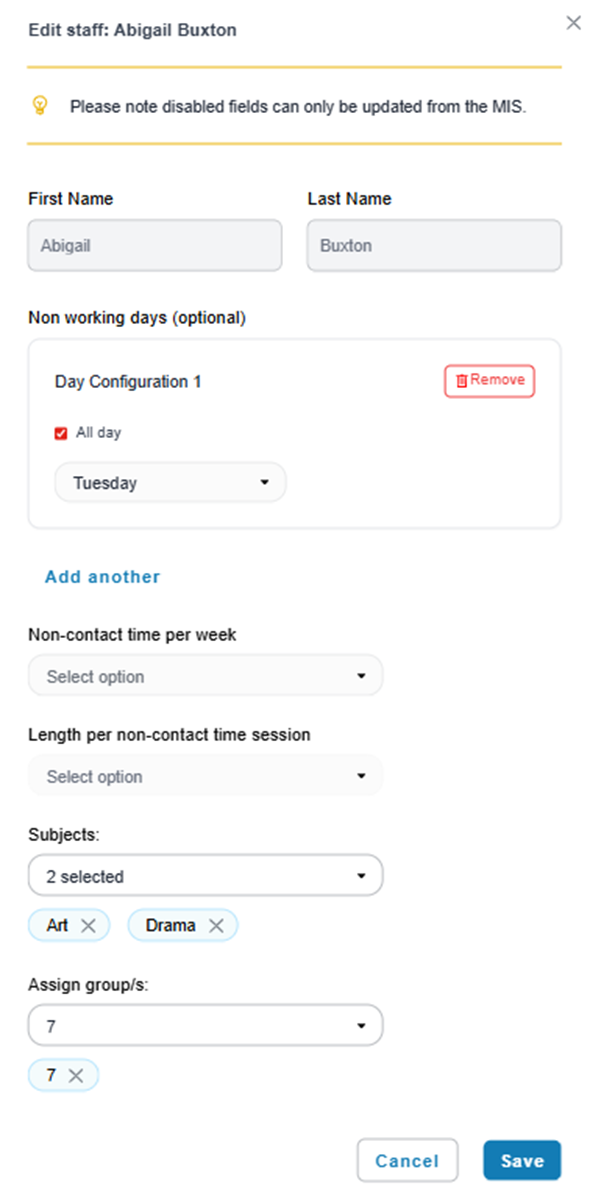
To set up a teacher in a timetable draft, go to Drafts > Staff and select a teacher from the list using the pencil icon under Actions. You will be able to adjust all data points except First name, Last name, email or Source ID - which rely on MIS/SIS data as unique identifiers.
- Non-contact time (per week) – set allowances for Planning, Preparation and Assessment (PPA), Release from Face-to-Face (RFF), or Duties Other Than Teaching (DOTT).
- Subjects they can teach – select the subjects the staff member is qualified to deliver.
- Groups they will teach (if applicable) – assign teaching groups where required.
- Non-working days (optional) – add a full day off or enter a start and end time for partial availability.
These details help the timetable respect teacher availability, workload, and subject expertise.
Tip: If a timetable result looks unexpected, start by checking the staff member’s non-contact time and non-working days, then confirm their subjects and groups.
Was this article helpful?
That’s Great!
Thank you for your feedback
Sorry! We couldn't be helpful
Thank you for your feedback
Feedback sent
We appreciate your effort and will try to fix the article