If you use Timetable (E10), you can access its help articles here
Introduction
Create periods within a timetable draft that work for your school, you can create either single or multi-grid structures.
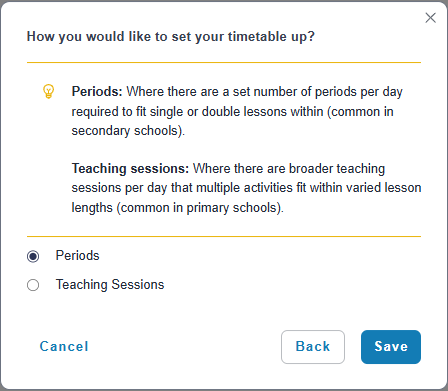
This article explains how to set up your school's single grid structure using Periods structure within a draft timetable.
If you use morning and afternoon sessions for teaching time instead, you should set up a Teaching sessions structure.
IN THIS ARTICLE
- Before you start
- Set up a single-grid with Set periods
- Create a Multi-Grid timetable structure using Set Periods
- Up next
Before you start
Single grid timetables apply where all years across a school follow the same period structure. Same bell times, same lunch times, registration times (homeroom or roll call periods), breaks, etc.
Set up a single-grid with periods in a draft timetable
Whether you created a new timetable draft and have selected Periods > Save or have opened a timetable draft, navigate to Period structure:
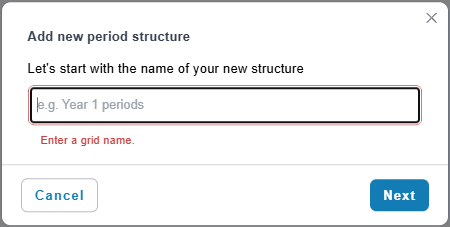
- Click Add a new Period structure.
- Name your Period structure e.g. Year 7 grid.
- Select Next.
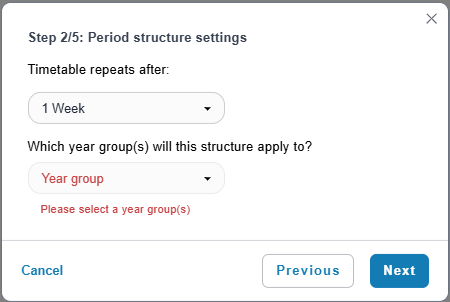
- Set the timetable cycle to repeat after 1, 2 or 3 weeks using the dropdown.
- Set the academic year for this period structure using the dropdown.
- Select Next.
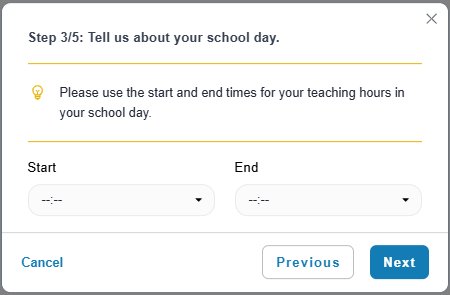
- Set the Start and End times of the school day using the dropdowns.
- Select Next.
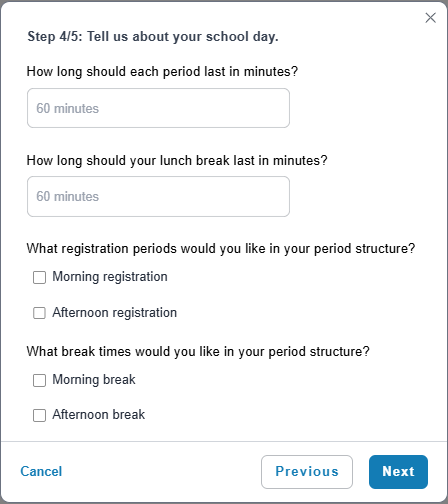
- Set the length each single teaching period should be in minutes.
- Set how long lunch break is in minutes.
- Add any Registration (homeroom or roll call) period by ticking either Morning registration or Afternoon registration, or both.
- Add any other breaks by ticking either Morning break or Afternoon break, or both.
- If you do add other breaks, you'll need to specify how long these should be.
- Select Next (the system calculates how many periods and unallocated time and will not progress until all time is allocated).
- Select the year group/s (if any) which will have any free periods assigned to them.
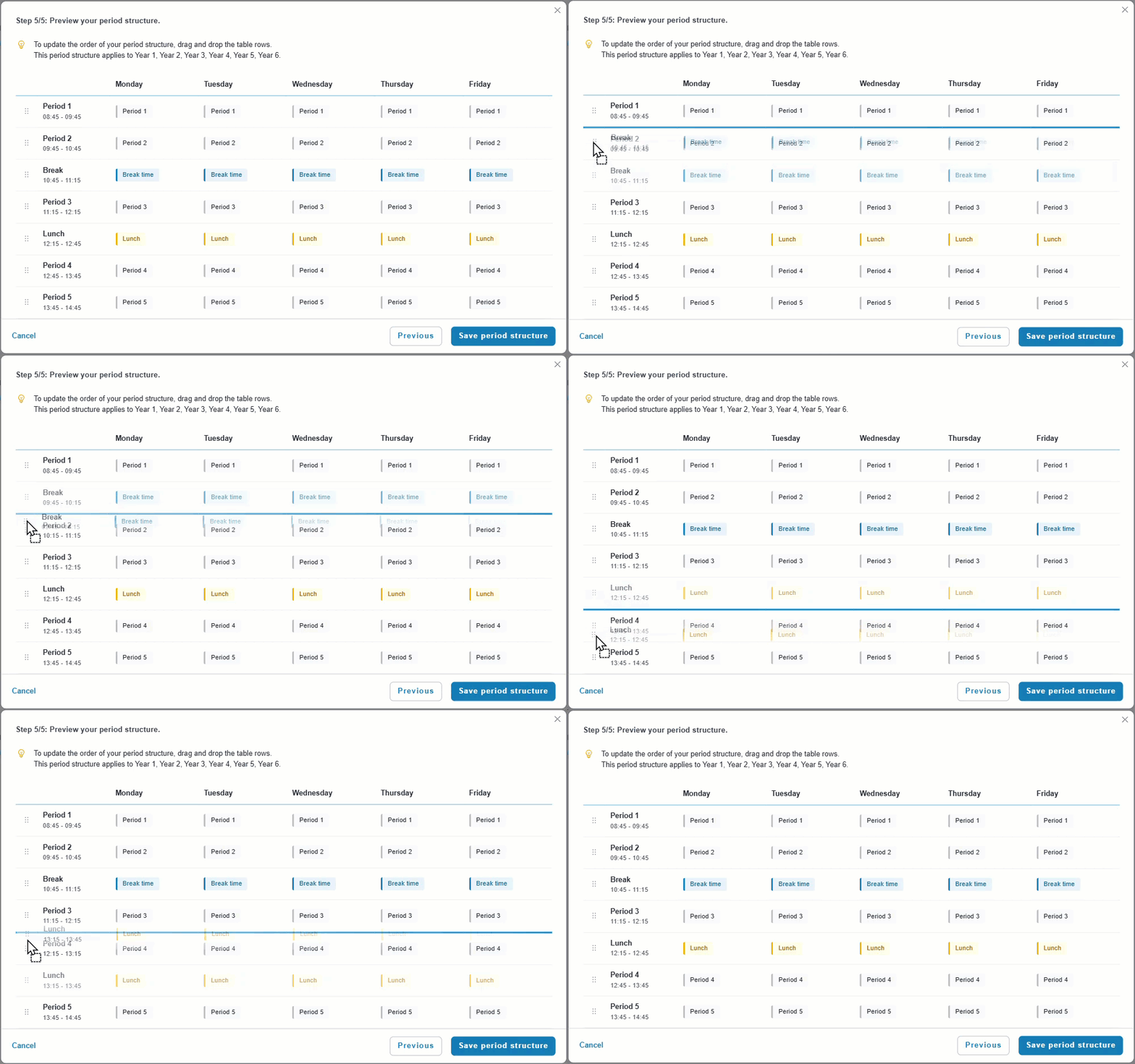
- Review the Period structure. This is an interactive window which allows you to drag and drop registration, breaks and lunch to the required time slots.
- Select Save period structure once your structure is confirmed.
You have created a single-grid period structure.
Screenshots below to assist with setting up Periods as the structure for a school timetable.
Notes:
- The system creates a single-grid using the start and end times for your day, registrations, breaks and lunch. The time between registrations and breaks become teaching periods. When you build the timetable, it schedules lessons within teaching periods.
- When viewing the timetable structure, you can drag and drop Registrations, Breaks and Lunches to different positions. When an item is moved, the period timings are automatically recalculated, the structure updates immediately.
- If you need to make changes to the structure, go to Drafts and open the draft to edit, navigate to Period structure in the draft and select Edit structure.
- Double periods: When designing a period structure, ensure consecutive teaching periods are available if you intend to schedule double periods later during class setup:
- Two teaching periods on the same day.
- No registration period between them.
- No break between them.
- No lunch period between them.
Does your school require multi-grid structure?
Multi-Grid timetables allow different year groups to follow different period structures within the same timetable. This is useful for schools that need staggered lunches, breaks, registrations, or different daily schedules across cohorts.
Note: Multi-Grid functionality is only available when using the Periods timetable structure (not Teaching sessions structure).
Learn how to set up multi-grid structure in a draft timetable
Up next
Set up term dates and non-teaching days in a draft timetable
Assign subjects to rooms in timetable draft
Was this article helpful?
That’s Great!
Thank you for your feedback
Sorry! We couldn't be helpful
Thank you for your feedback
Feedback sent
We appreciate your effort and will try to fix the article